使用linux的过程中,终端模拟器是我们常会接触到的软件,因此在提升使用体验乃至美观程度这一问题上,许多人都给出了不同组合方案,我也来凑个热闹,分享下我本人
目前正在使用的终端方案(也是社区内常见的主流工具),maybe能让你有眼前一亮的感觉!
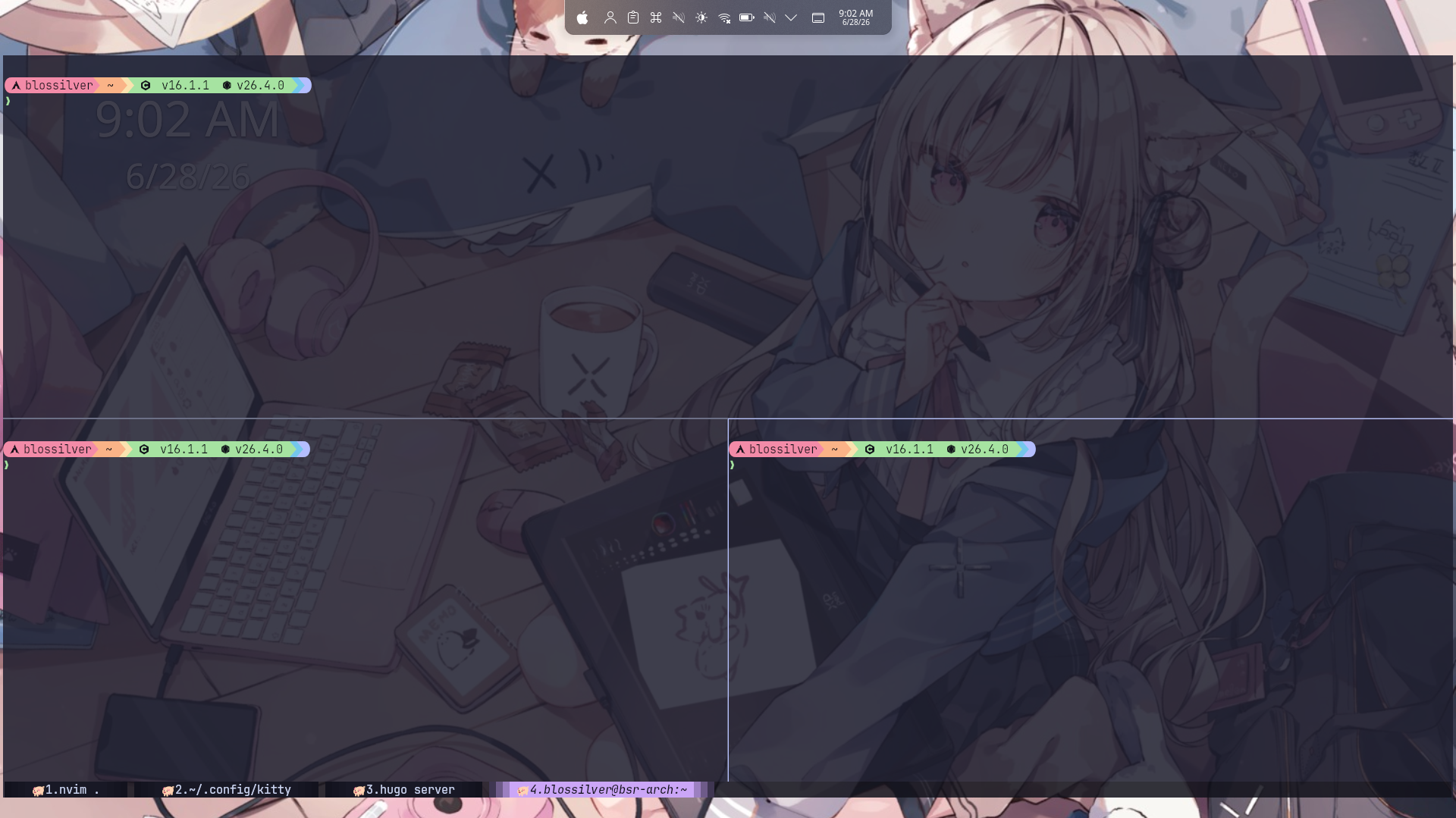
终端模拟器 Kitty
Kitty是由Kovid Goyal开发的一个具有许多现代化功能的终端模拟器,据说由于Kovid不能忍受Tmux对资源的大量占用,因此kitty诞生了。Kitty相比许多桌面系统自带的terminal,
拥有如图片协议,分屏,多窗口等实用功能,以及最近合并的非常非常cool的光标跳转动画(It really turns me on),并且对纯键盘操作的支持非常不错,提供了许多操作的快捷键,
同时快捷键的绑定也和tmux一样,支持自定义。另外,kitty也支持透明背景,去除窗口装饰,导入主题等常见功能。
配置
这里分享下我本人的kitty配置
 1
 2
 3
 4
 5
 6
 7
 8
 9
10
11
12
13
14
15
16
17
18
19
20
21
22
23
24
25
26
27
28
29
30
31
32
33
34
35
36
37
38
39
40
41
42
43
44
45
46
47
48
49
50
51
52
53
54
55
56
57
58
59
60
61
62
63
64
65
66
67
68
69
70
71
72
73
74
| # fonts
font_family JetBrainsMono Nerd Font
font_size 11.5
# layout
enabled_layouts splits, stack
hide_window_decorations true
# map ctrl+[ layout_action decrease_num_full_size_windows
# map ctrl+] layout_action increase_num_full_size_windows
# map ctrl+/ layout_action mirror toggle
# map ctrl+y layout_action mirror true
# map ctrl+n layout_action mirror false
#: keymaps
#: tab
map ctrl+shift+i set_tab_title
# map ctrl+shift+] next_tab
# map ctrl+shift+[ previous_tab
# map ctrl+shift+. move_tab_forward
# map ctrl+shift+, move_tab_backwa# rd
map alt+1 goto_tab 1
map alt+2 goto_tab 2
map alt+3 goto_tab 3
map alt+4 goto_tab 4
map alt+5 goto_tab 5
map alt+6 goto_tab 6
map alt+7 goto_tab 7
map alt+8 goto_tab 8
map alt+9 goto_tab 9
map alt+0 goto_tab 10
# goto the previous tab you are working on
map alt+p goto_tab -1
map ctrl+alt+z toggle_layout stack
# the cursor animations
cursor_trail 3
# BEGIN_KITTY_THEME
# Catppuccin-Mocha
include current-theme.conf
# END_KITTY_THEME
background_opacity 0.86
dynamic_background_opacity yes
# Create a new window splitting the space used by the existing one so that
# the two windows are placed one above the other
map ctrl+shift+' launch --location=hsplit
# Create a new window splitting the space used by the existing one so that
# the two windows are placed side by side
map ctrl+shift+5 launch --location=vsplit
#: broadcast
map f1 launch --allow-remote-control kitty +kitten broadcast --match-tab state:focused
#: resizing window
map cmd+r start_resizing_window
map ctrl+shift+i resize_window wider
map ctrl+shift+m resize_window narrower
map ctrl+shift+k resize_window taller
map ctrl+shift+j resize_window shorter
map ctrl+shift+r resize_window reset
#: tab
tab_bar_edge bottom
tab_bar_style fade
tab_bar_min_tabs 1
# tab_separator " ┃ "
tab_title_template "🐖{index}.{title}"
#: ssh
share_connections yes
|
Tips
导入主题可通过指令kitten themes进入主题选择的交互式界面,完成选择后kitty会自动在$HOME/.config/kitty/下生成对应的主题文件并在kitty.conf中增加对应的导入指令,无需手动include
其中每个配置的具体功能可在kitty官方文档中查阅
能否取代tmux?
我相信许多ysyxers已经使用过了tmux这一强大的终端复用器,那么我们的kitty和tmux相比又有什么优势呢?
kitty和tmux的功能都很强大,因此不是所有功能我都尝试过,因此这里主要讲我在使用过程中感受到的二者较明显的差异。
- kitty默认支持通过鼠标上下滑动窗口的功能,而tmux需要额外配置。
- 在tmux的标准输出只能看到有限行数,这意味着如果你的程序输出过多,会丢失内容,而kitty不仅没有这一限制,更有支持通过less查看上一次命令执行的标准输出的功能。
- kitty在切换窗口/tab的操作体验更丝滑,如你只需按住ctrl+shift+方向键即可快速左右切换tab,而tmux需要先按一次prefix,再按下p或者n才能切换一次,在连续左右切换tab上非常不方便。
- tmux对于标准输出的保护功能欠缺,有时会因为意外在标准输出打印了某些二进制文件,破坏了终端的正常功能,只有重新打开一个新的终端才能解决。
总而言之,在日常使用上,得益于kitty的高现代化程度,kitty的使用体验我认为是明显优于tmux的,不过也有一些局限:
- kitty不具备tmux的会话挂起功能。会话挂起配合ssh,很好解决了远程执行长时间运行的程序时的不便。同时tmux在远程二人协作coding上也表现得十分不错。
- kitty分割出的新窗口默认位于$HOME目录下,而tmux在分割窗口时可以保存当前处于的路径,这在我们分割窗口,对同一程序进行调试时较为方便。